

How to get started
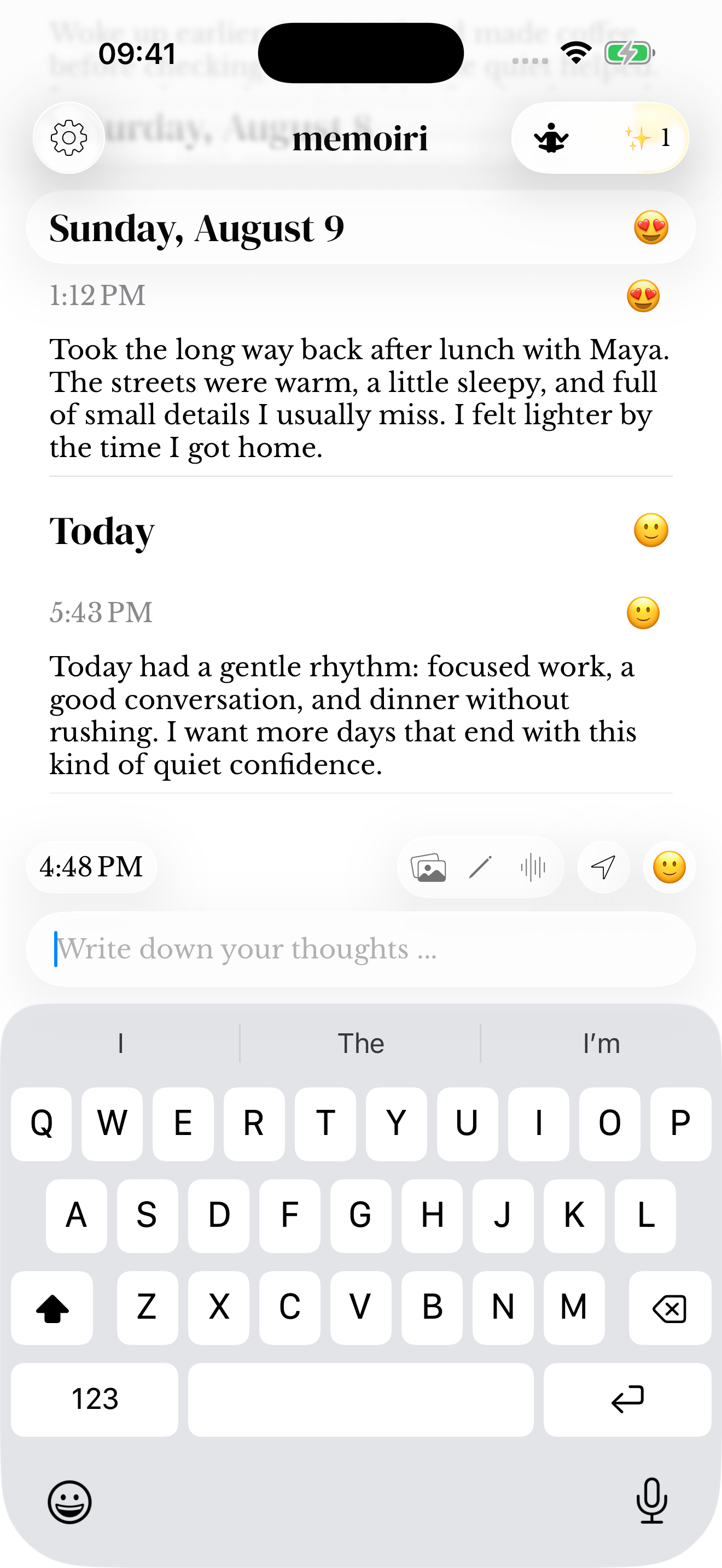
- Open memoir and follow the first-memory guide, or go straight to your journal.
- Write a thought in the entry field at the bottom of the screen, then save it. A title is optional.
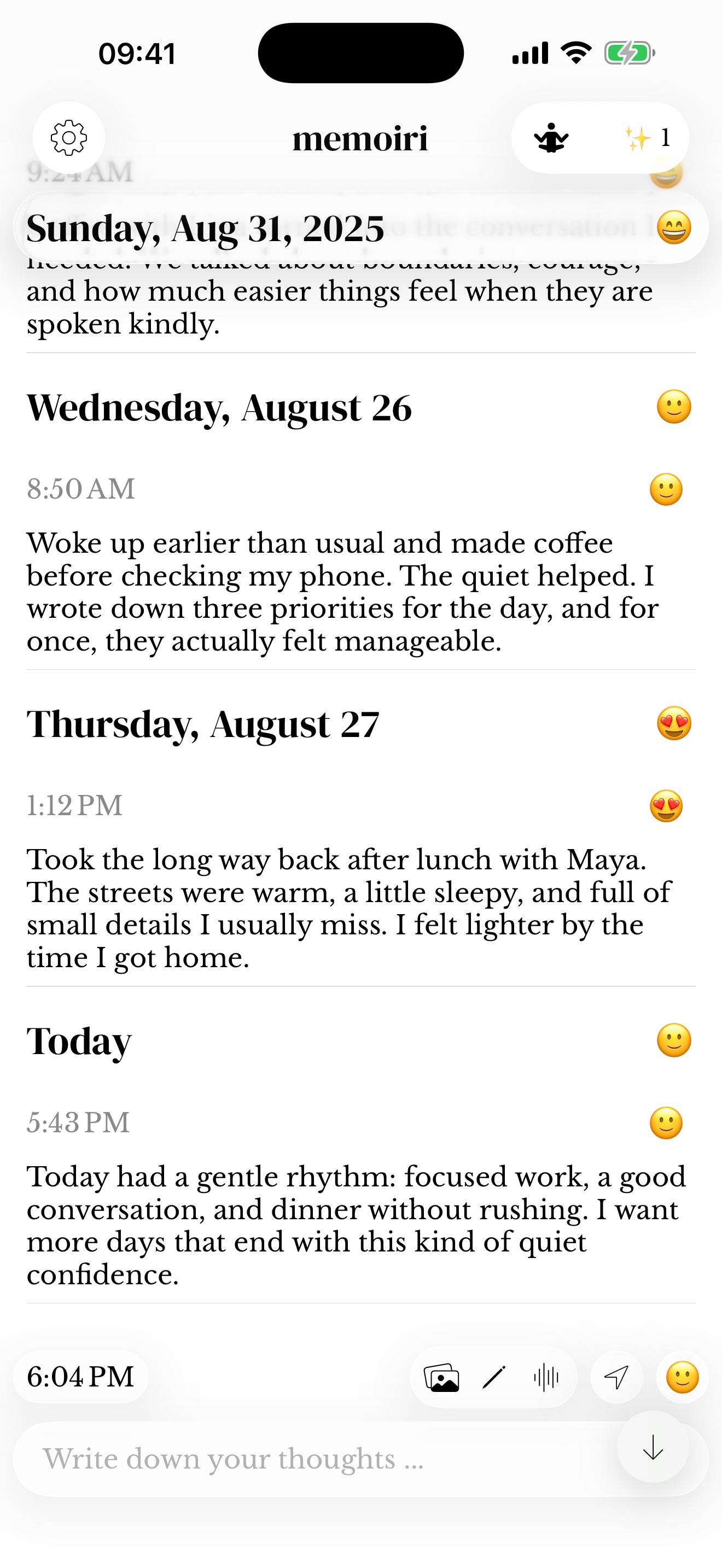
- Browse your timeline to return to the entry. Use Search when you want to find something specific.
Choose your own starting point
Try one sentence about what happened, a photo of something you noticed, or a voice note when typing is inconvenient. A mood check-in is also a way to begin. Your journal can contain different kinds of entries on the same day.
The app groups memories by day and time. Start with what is useful now; there is no requirement to reconstruct your past before you can write today.
Make the app comfortable
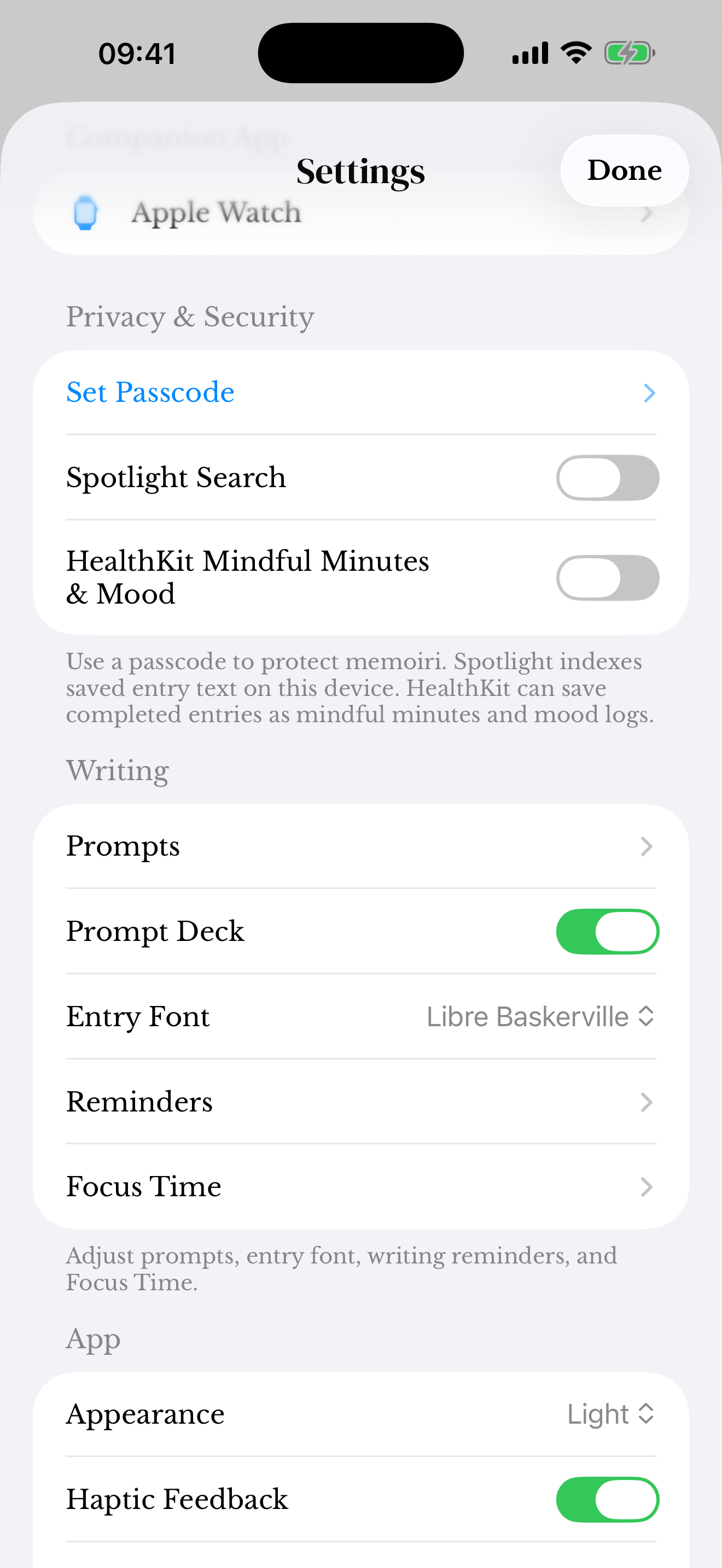
Settings includes writing preferences, privacy options, and support. You can revisit Getting Started or Explore memoir when you want another introduction. Some options are part of memoir+; the app explains those before purchase.
Find your way around
The journal timeline holds saved entries; the composer at the bottom holds what you are writing now. Open the library to choose a journal, Search to find a memory, and Reflection to look back.
Start with the draft guide if you prefer to write in stages. Settings brings together privacy, sync, writing preferences and device integrations.
Screenshots use sample content. Labels and available controls can vary by app version and device.