
How to get started
- Open the journal you want to write in and enter a few words in the composer.
- Add a mood, date, prompt or attachment if you want. Review the draft before sending it.
- If you leave before sending, return to the same journal to continue its draft.
- Tap the send arrow to save the memory, then check that it appears in the timeline.
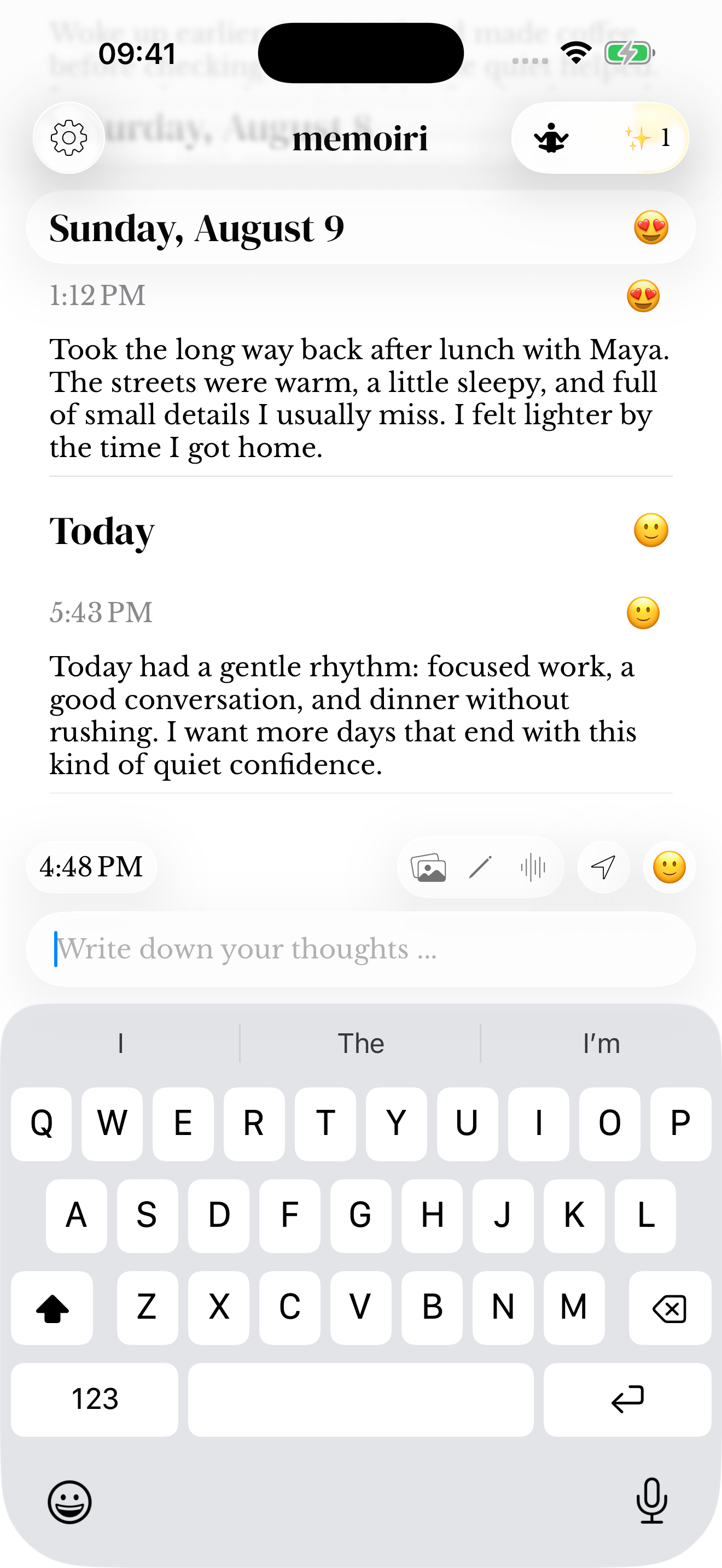
A draft belongs to its journal
Drafts are kept locally for each journal. If your unfinished text is not visible, first check that you have opened the same journal. An unsent draft is not a saved timeline entry and should not be treated as a synced or exported backup.
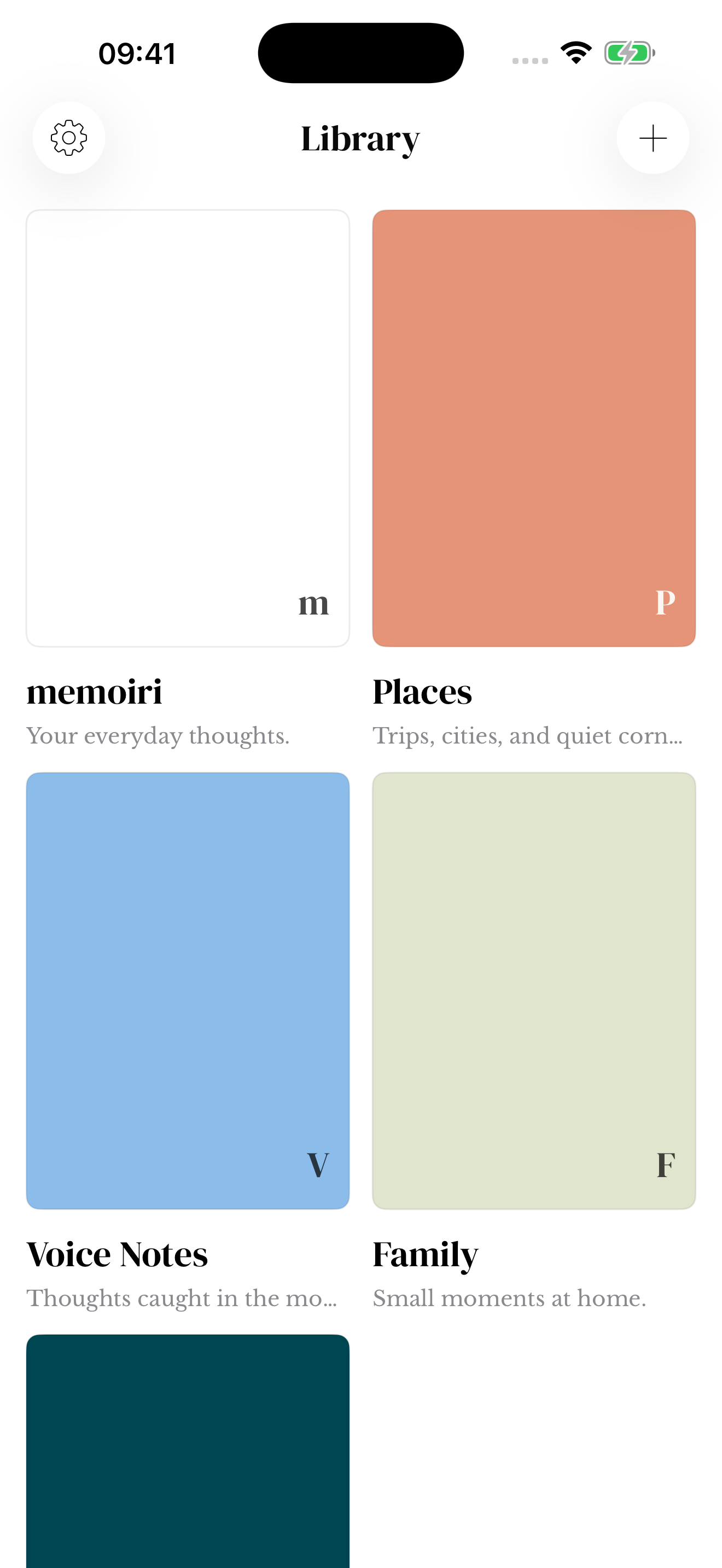
See multiple journals for choosing where to write and iCloud Sync for transferring saved memories.
Photos, sketches and recordings in a draft
You can prepare a draft with media before deciding to save it. Submitting a draft with photos, stickers or sketches requires memoir+; writing and audio-only capture remain available without the upgrade. A purchase prompt does not mean your draft has been submitted.
Review the attachment previews and wait for a recording to finish before sending. Follow the photo guide, sketch guide or voice guide for the relevant controls.
Dates when you return
If you did not choose a date yourself, a restored draft uses the current date and time. A deliberately chosen draft date is retained, bounded by the current time. Check the date before saving a memory you started earlier.
Before deleting the app or changing devices, save drafts you want to keep as entries and export a backup.
Screenshots use sample content. Labels and available controls can vary by app version and device.