

How to get started
- Open the waveform action in the composer. Allow microphone access if you want to record.
- Speak into the microphone. Watch the recording controls and use pause or resume when available.
- Stop the recording, review the audio and any recognized text, then save the entry.
- Use the play button beside a saved waveform to listen again.
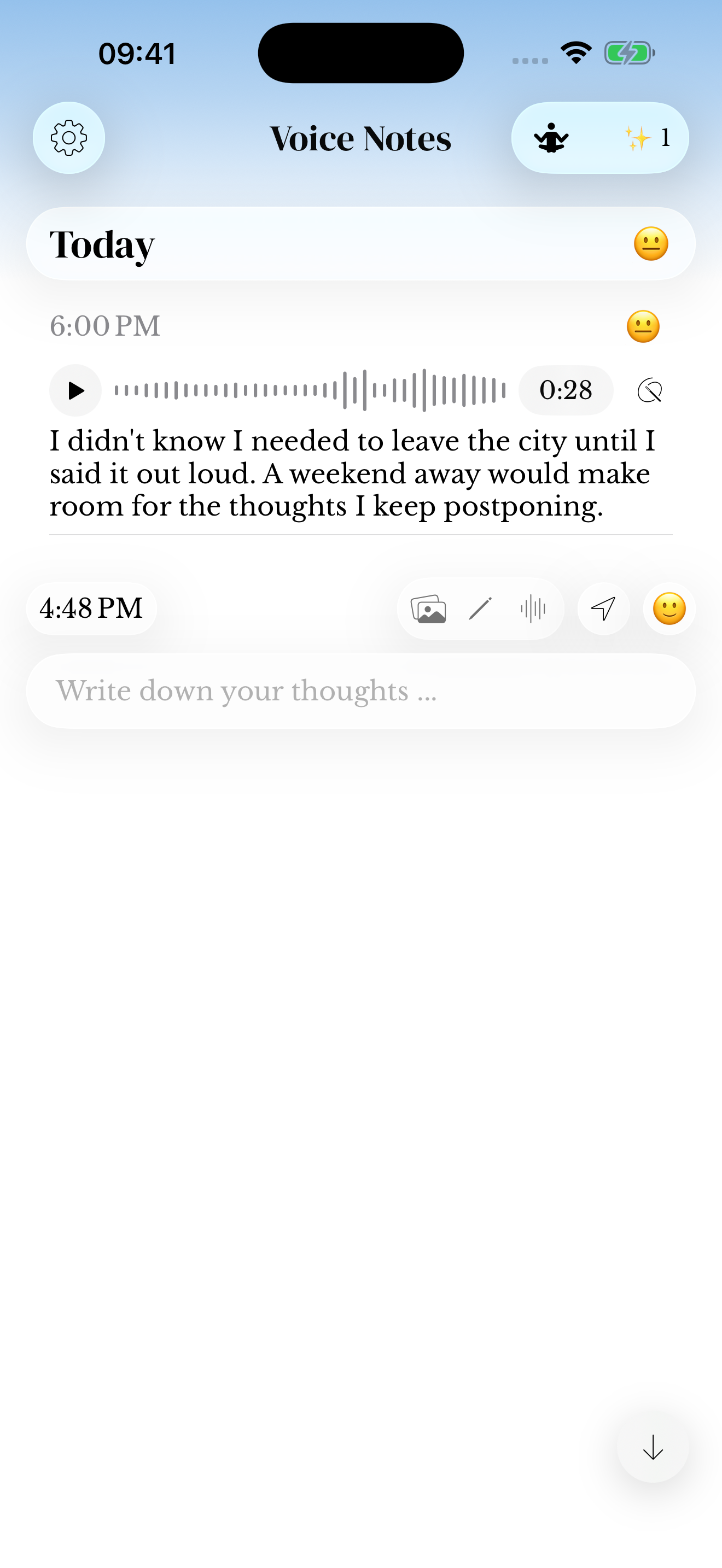
Return to the recording
Open the saved entry and use its playback control to listen again. You can add written context so the memory is easier to recognize later.
This guide covers saving and playing audio. Converting a recording to text is a separate feature.
If recording or playback does not work
Check microphone permission in the device settings and make sure you have enough storage for new media. For playback, check volume and whether sound is routed to headphones or another device.
If a recording should have arrived from Apple Watch, check the companion connection and the Watch guide. Do not delete your original recording while investigating a transfer.
Transcripts are worth checking
Speech Recognition permission is separate from microphone access. Review names and words before relying on a transcript; keep the original audio when the text is incomplete.
See voice transcription for permissions and Watch recordings, or Apple Watch to capture from your wrist.
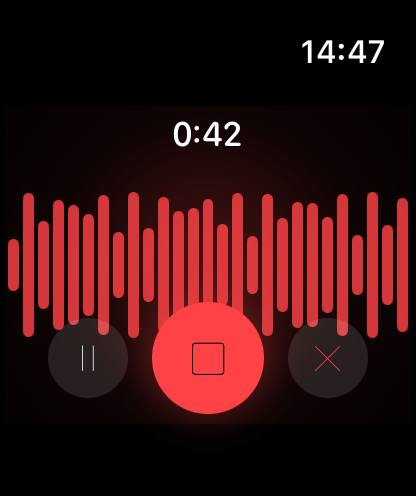
Screenshots use sample content. Labels and available controls can vary by app version and device.