
How to get started
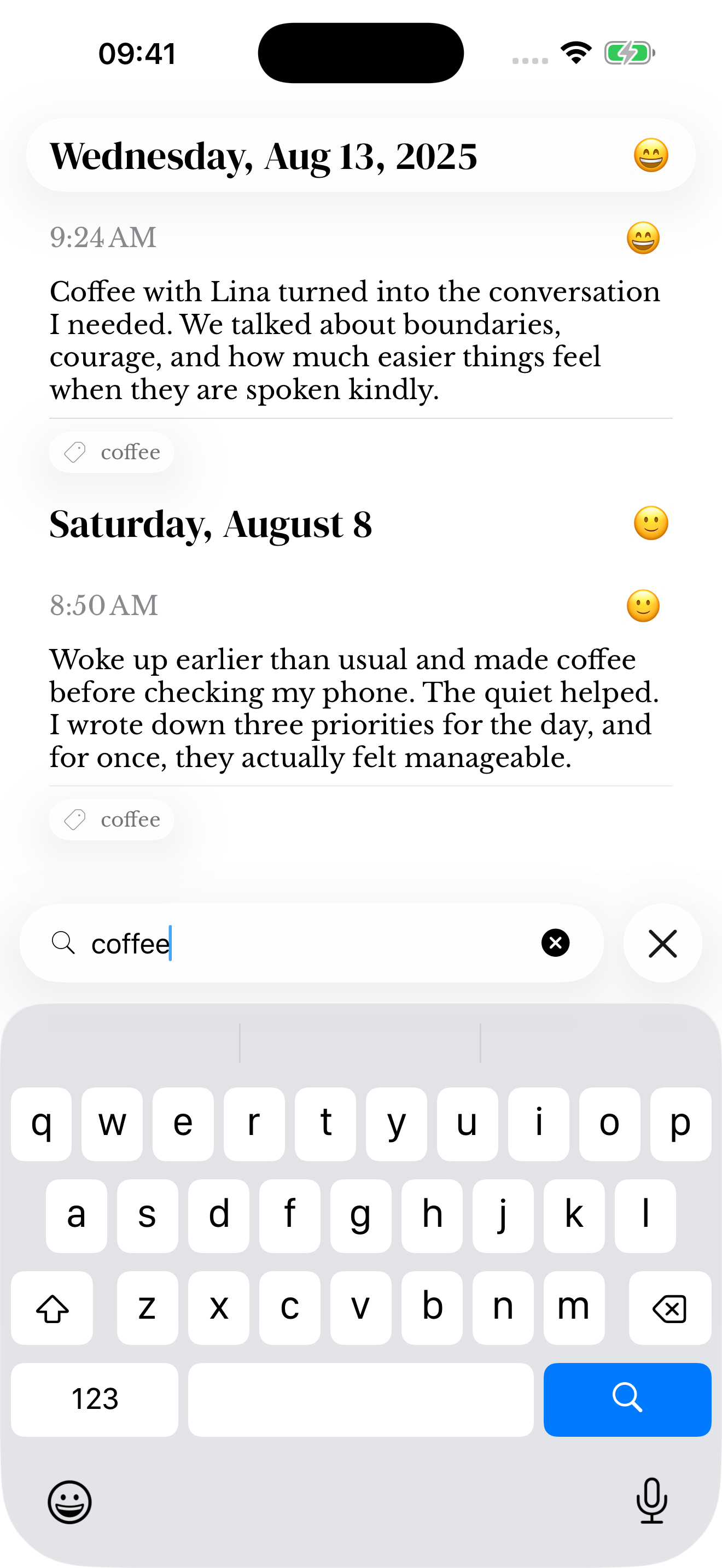
- Open Search and enter a word, phrase, person or place you remember.
- Try date or media language such as “photos last month,” or choose a suggestion based on your saved entries.
- Review the active filters and match reasons shown with results; remove a filter if it narrows the search too far.
- Open a result to read the complete saved entry.
When there are no results
Try a shorter or different word, remove the date filter, and check which journals are included in your search. A media filter can exclude text-only entries even if the words match.
Names or places you remember may not have been written into the entry or stored in its metadata. Search what was actually saved rather than relying on a detail that was only in your memory.
Search and privacy
Search in memoir is separate from optional Spotlight indexing on the device. Enabling one does not mean you have chosen to expose all journal content through every system surface.
Review the Health and Spotlight guide before enabling system search for private entry text.
Search beyond the written words
Search can also use saved journal names, moods, locations, detected people and tags, media types, and recognized text in photos. A match reason helps explain why an entry was returned.
Recognition is not perfect. If a word in a photo does not match, try a word from the caption or a date instead. Empty Search can show suggestions before you submit a query.
Screenshots use sample content. Labels and available controls can vary by app version and device.