

How to get started
- For a new memory, tap the date or time above the writing field and choose the intended timestamp.
- For a saved memory, tap its time in the timeline to open Edit Entry. You can also press and hold the entry and choose Edit Details.
- Change the date and time, then tap Done in the entry editor.
- Find the memory under its updated day in the timeline or use Search.
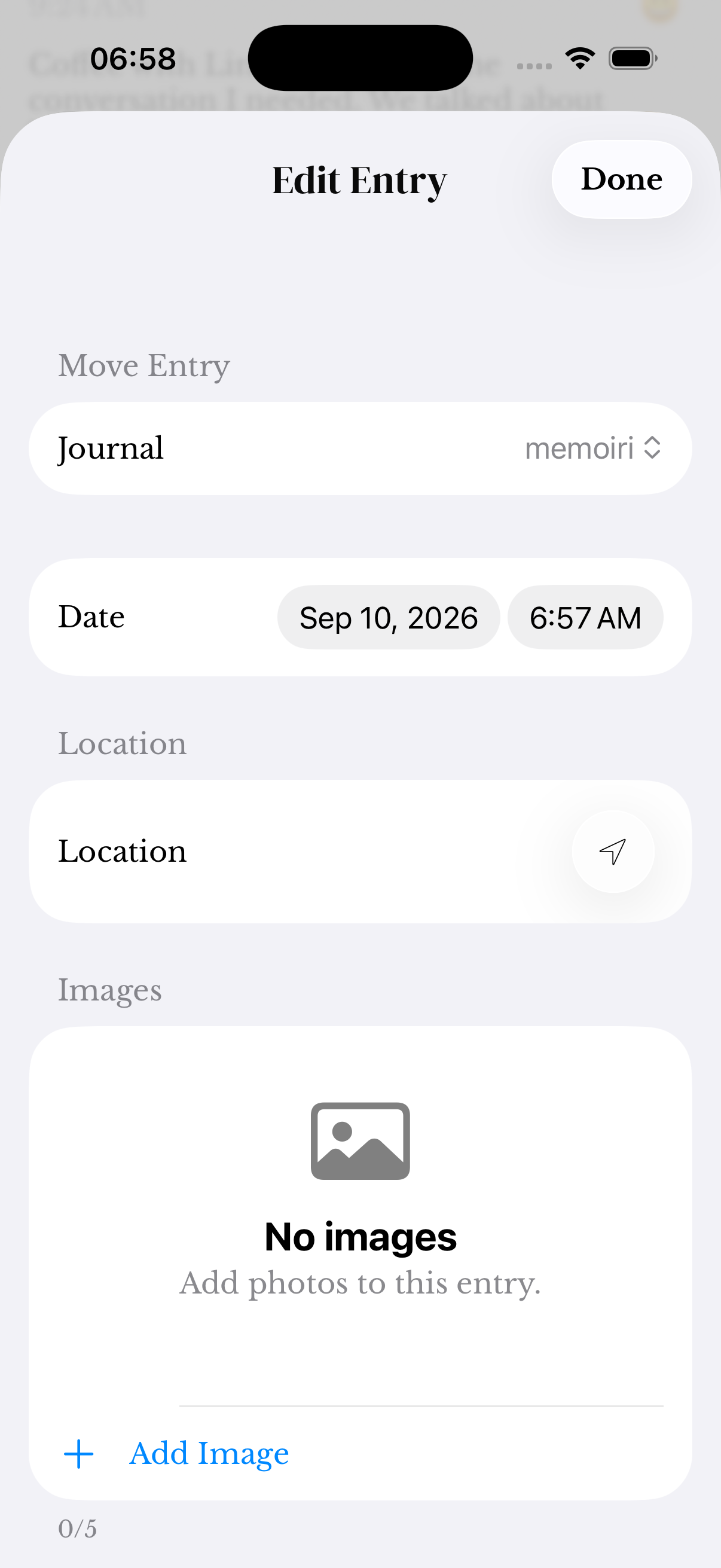
Why the entry moves
The timeline groups memories by their saved date. Changing a timestamp can move an entry to another day and affect date-based views such as mood history, writing activity and On This Day.
For an older memory, choose the date you want the journal to record instead of leaving today’s timestamp by accident.
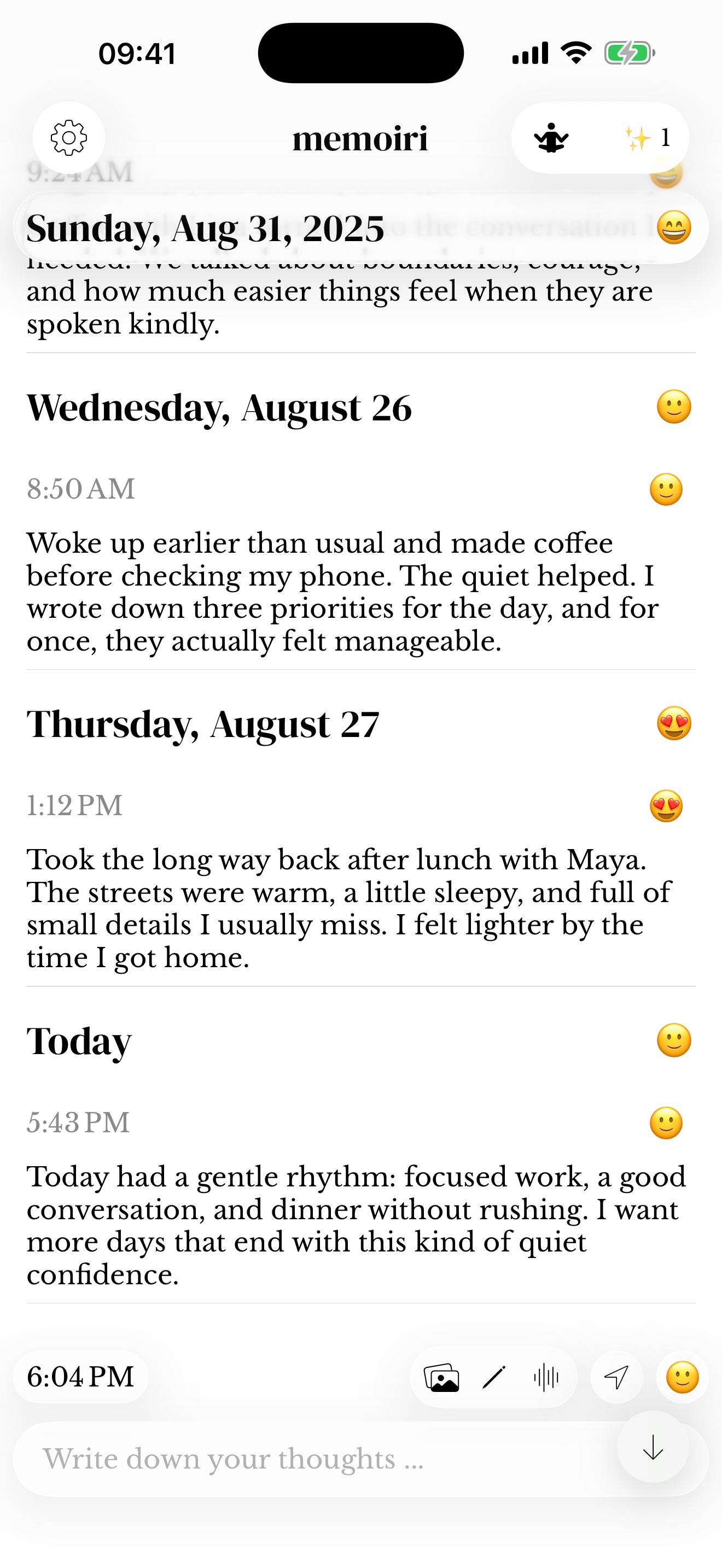
Date and journal are separate choices
Changing a timestamp does not move an entry into a different journal. Use the journal picker in Edit Entry when you also need to move a memory.
A location label is separate metadata too. See places and locations if the place rather than the date needs attention.
Screenshots use sample content. Labels and available controls can vary by app version and device.