

How to get started
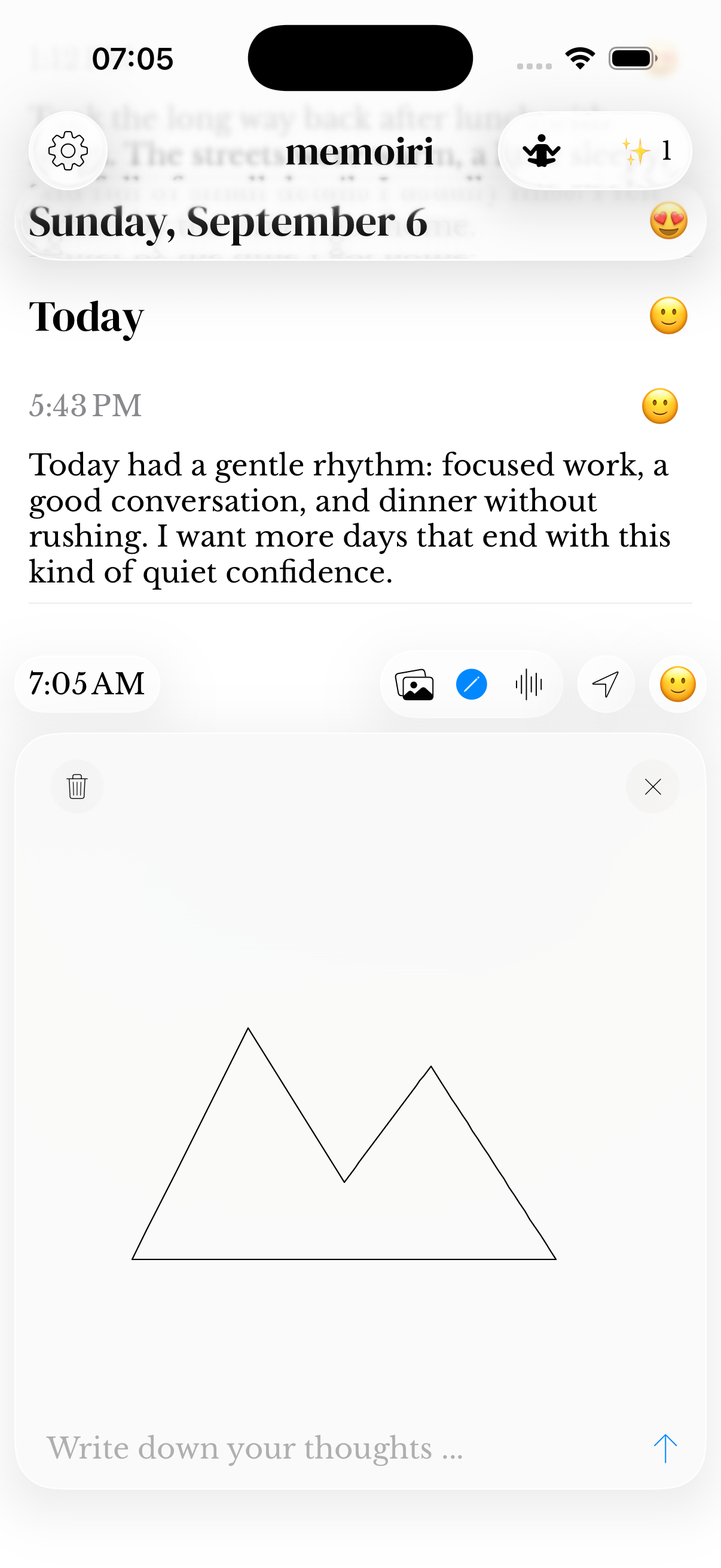
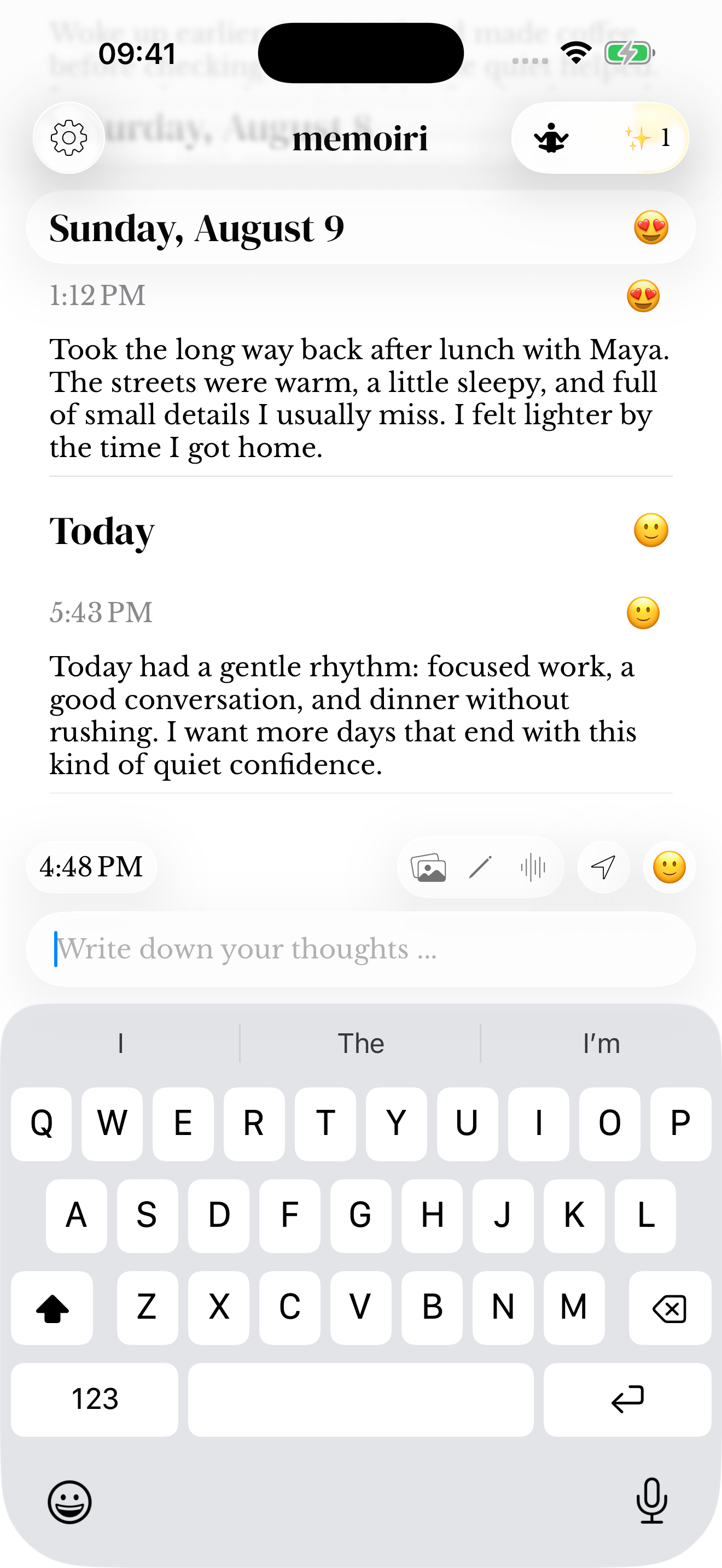
- Tap the pencil action in the composer to reveal the sketch canvas.
- Draw directly on the canvas. Use Clear Sketch if you want to start the drawing again.
- Add words or a mood to the same draft if you want context alongside the drawing.
- Send the entry and check the saved sketch in the timeline. Saving sketches requires memoir+.
Keep drawings connected to the day
A few words can explain what the sketch represents or what prompted it. That context helps when you browse the entry later.
Sketches are one of the media types you can look for when searching your journal. They stay connected to the entry rather than becoming an unrelated image collection.
Before leaving a drawing
Finish your drawing and save the entry before leaving the screen. Check that the sketch appears in your journal.
When moving your library, use a memoir backup that includes attachments. A copied text excerpt alone does not preserve the drawing.
A simple drawing alongside your words
The canvas is a lightweight freehand drawing space. Draw a small scene, an outline or a route; the sketch stays an attachment to your memory. Clear Sketch removes the current drawing, so use it only when you want to start over.
Before sending, the drawing belongs to your draft. A small caption can make it easier to recognize the memory later.
Screenshots use sample content. Labels and available controls can vary by app version and device.