

How to get started
- Open a journal on iPad and write in the composer.
- Add supported photos, a sketch, a mood or a recording using the entry controls.
- Use Search and Reflection to revisit saved memories.
- If you want saved entries on iPhone too, review memoir+ and iCloud Sync on both devices.
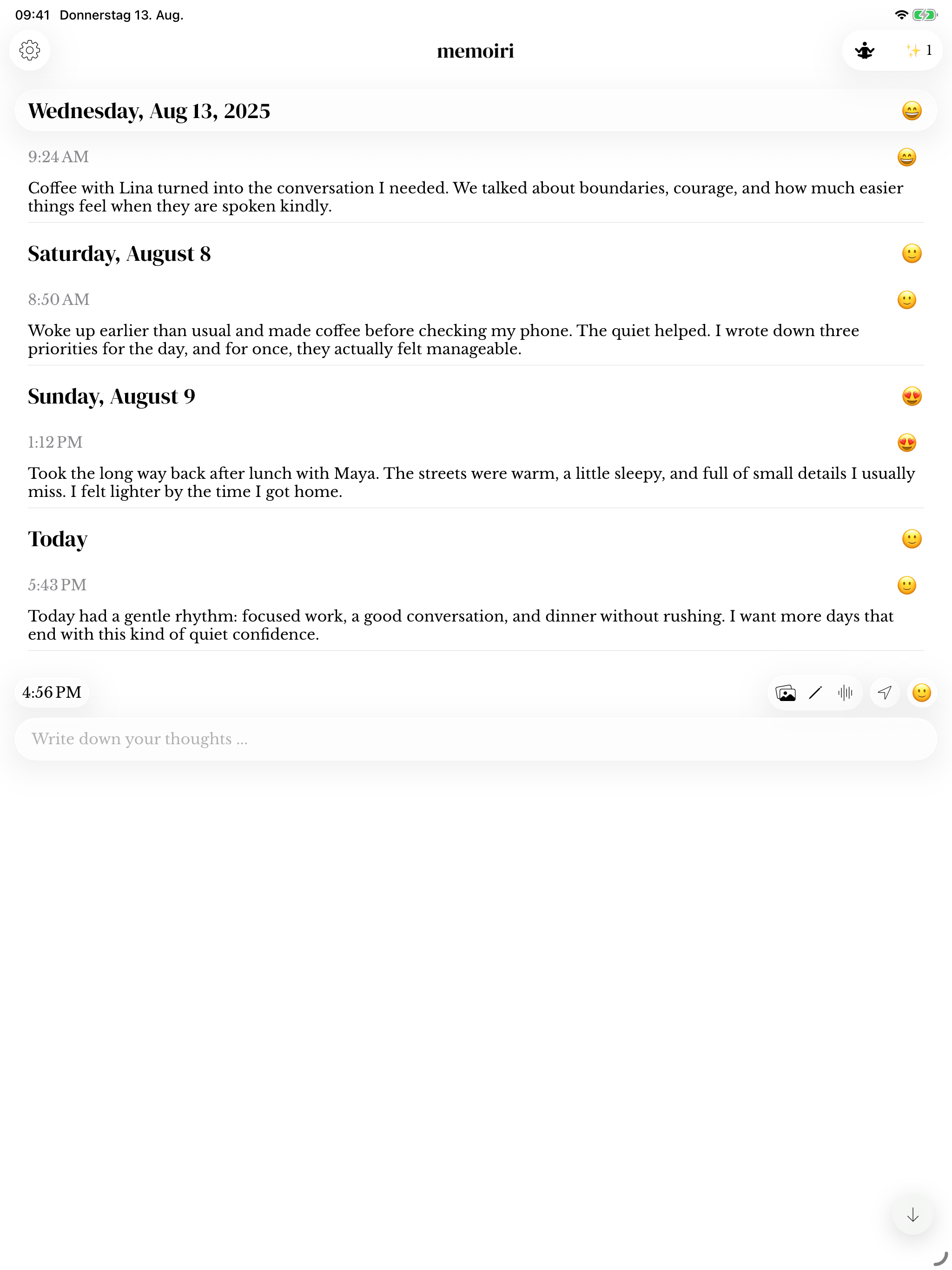
Writing with a keyboard
Type normally with the onscreen or connected keyboard. Pasting text and supported media uses the standard editing menu or keyboard paste command. Review what appeared in the draft before sending.
Open a photo to view it more closely, or use the sketch canvas when a drawing is a better fit.
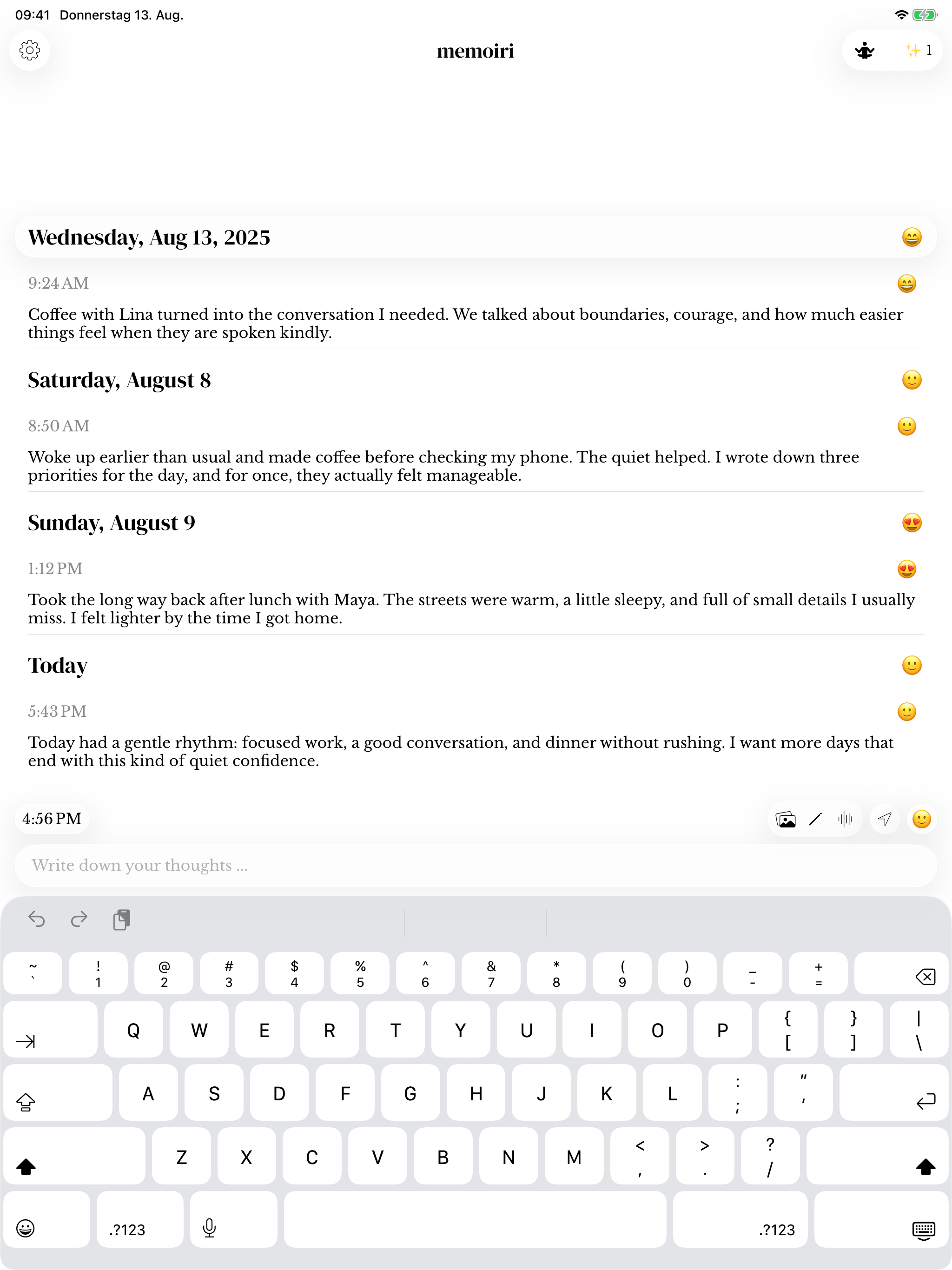
Device-specific controls
App locking through Screen Time is an iPhone feature; Focus Time can still be used inside memoir on iPad. Review the controls shown on the device instead of assuming every iPhone system integration is available.
Apple Watch uses its paired iPhone for companion transfers. It does not pair directly with the iPad.
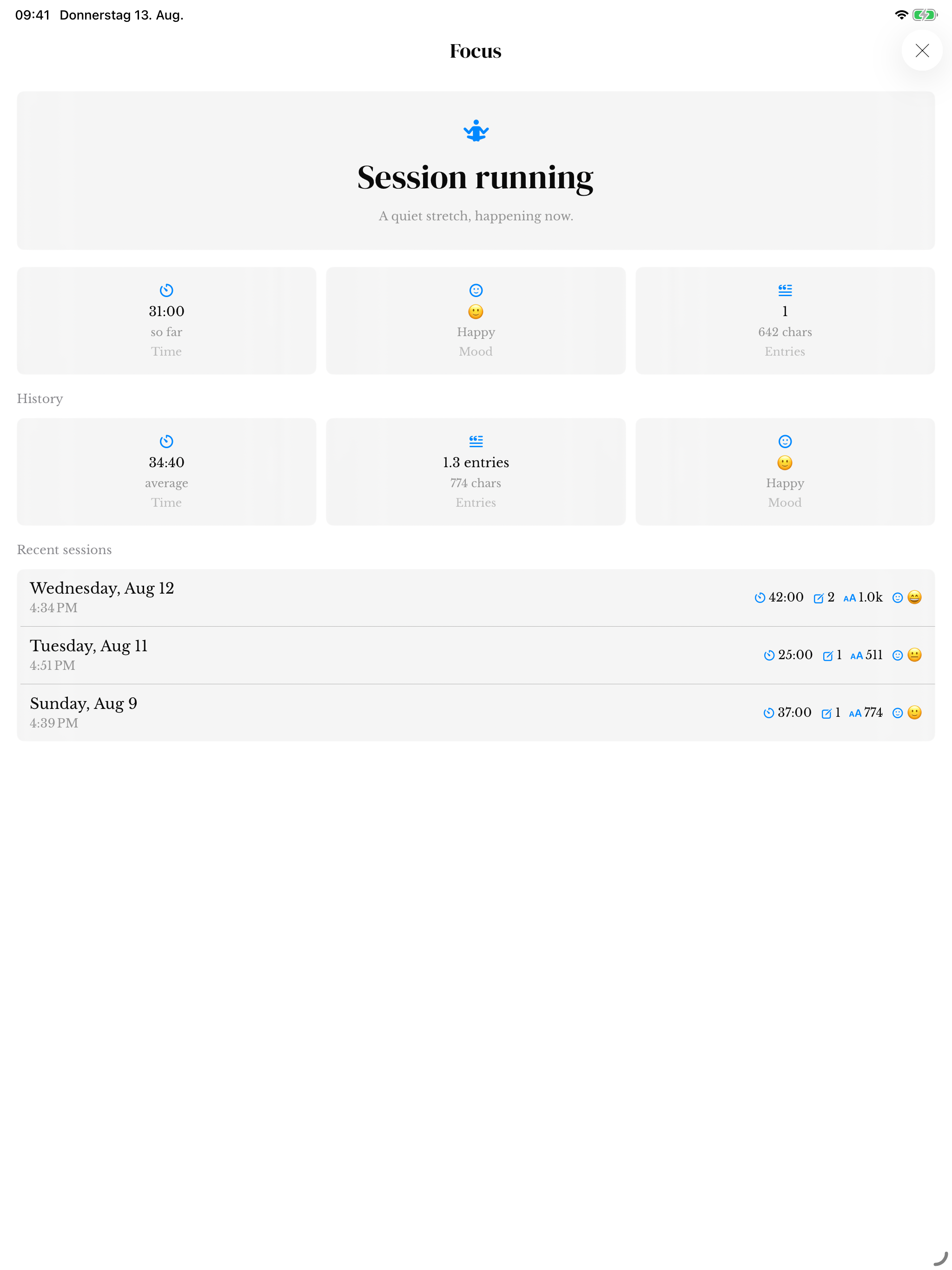
Before switching devices
An unsent draft stays local to its journal on that device. Save an entry before expecting it to sync, and allow attachments time to transfer.
Keep a separate backup when moving a library or replacing a device.
Screenshots use sample content. Labels and available controls can vary by app version and device.