
How to get started
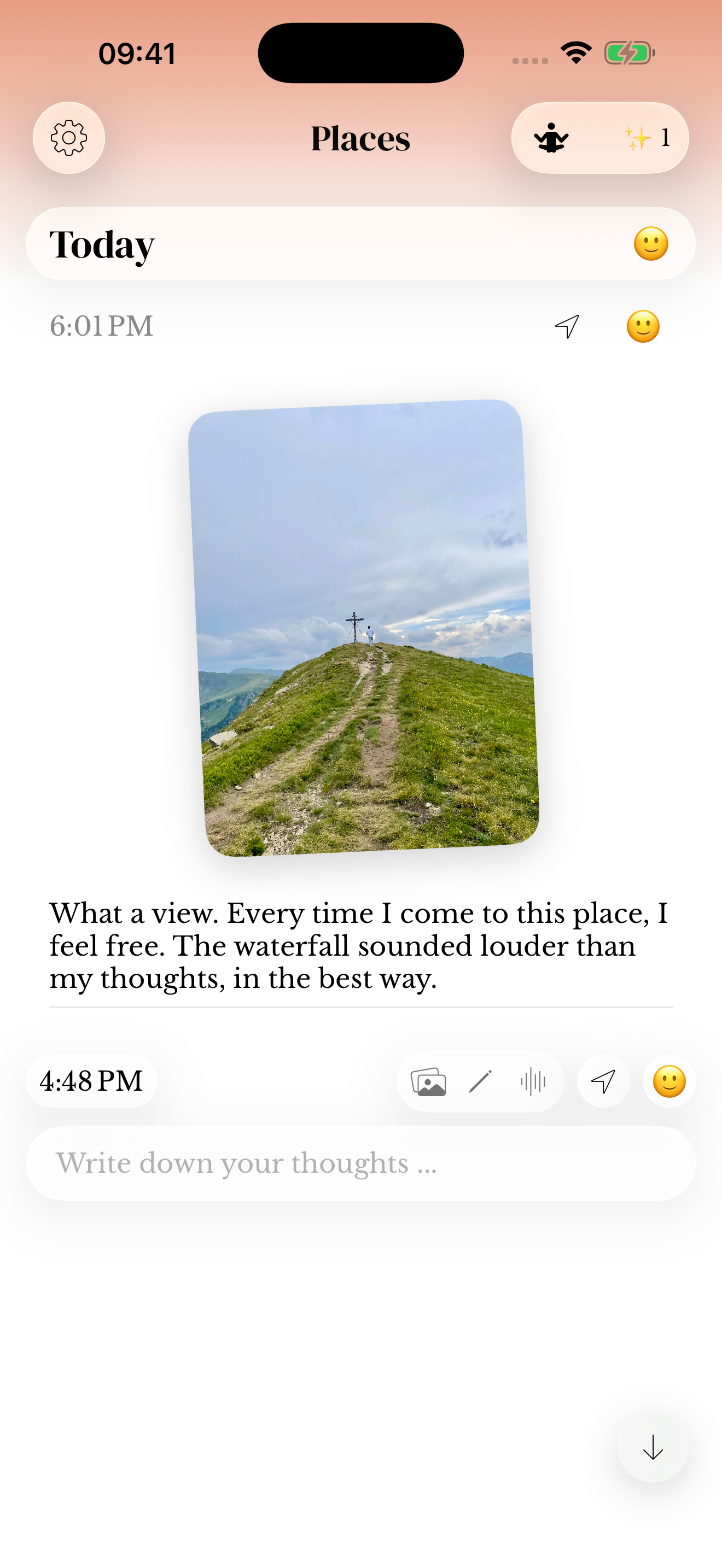
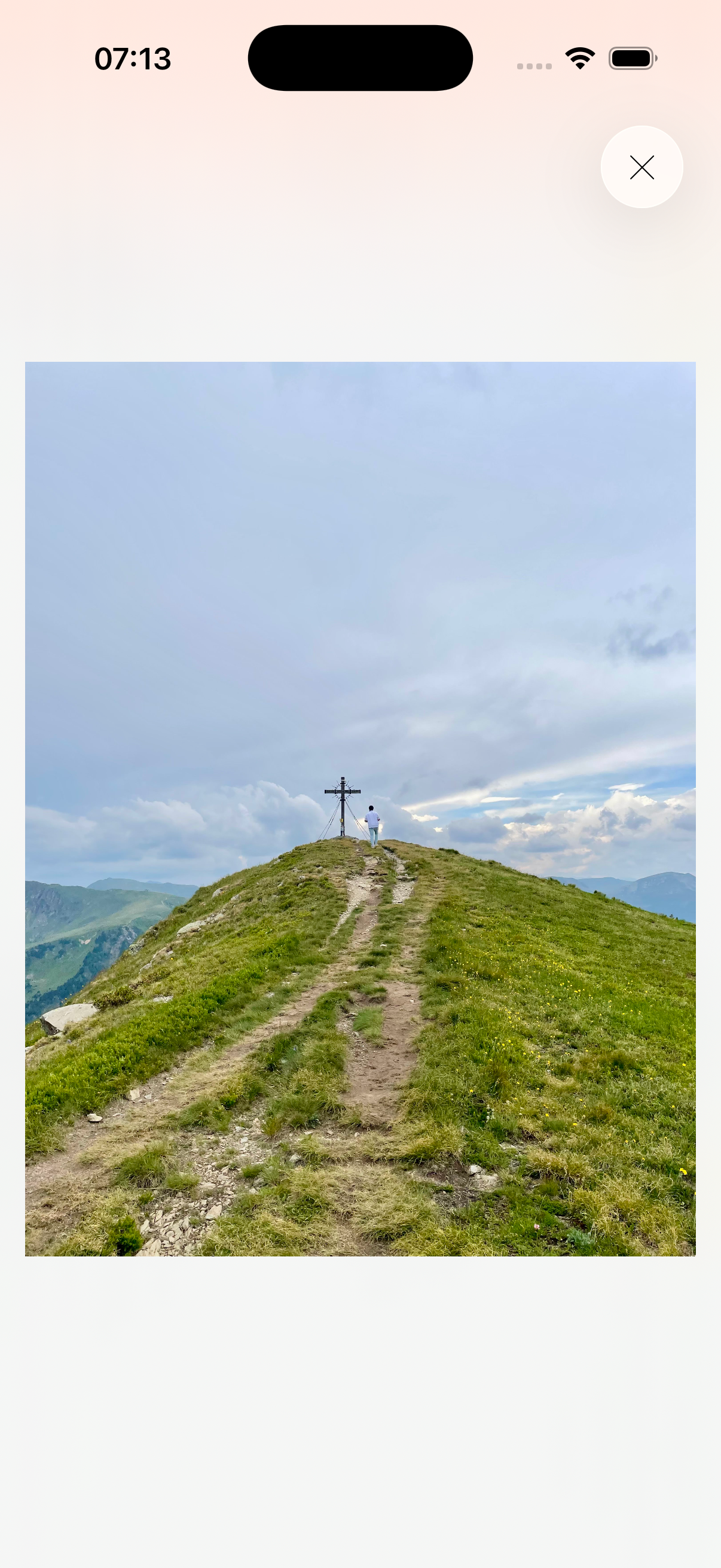
- Tap a photo in the draft or saved entry to open the full-screen gallery.
- Swipe between photos while the current image is at its resting size.
- Pinch to zoom, then drag to look around the enlarged image.
- Zoom back out to browse the next photo, or close the gallery to return to the entry.
Arrange photos before sending
In a draft, drag the photos themselves to change their order. With VoiceOver, use the photo’s adjustable actions to move it. The saved entry keeps the selected order.
Use the small remove control on a draft photo only when you want to remove that attachment from the draft. Check the remaining stack before sending.
Add or remove photos on an existing entry
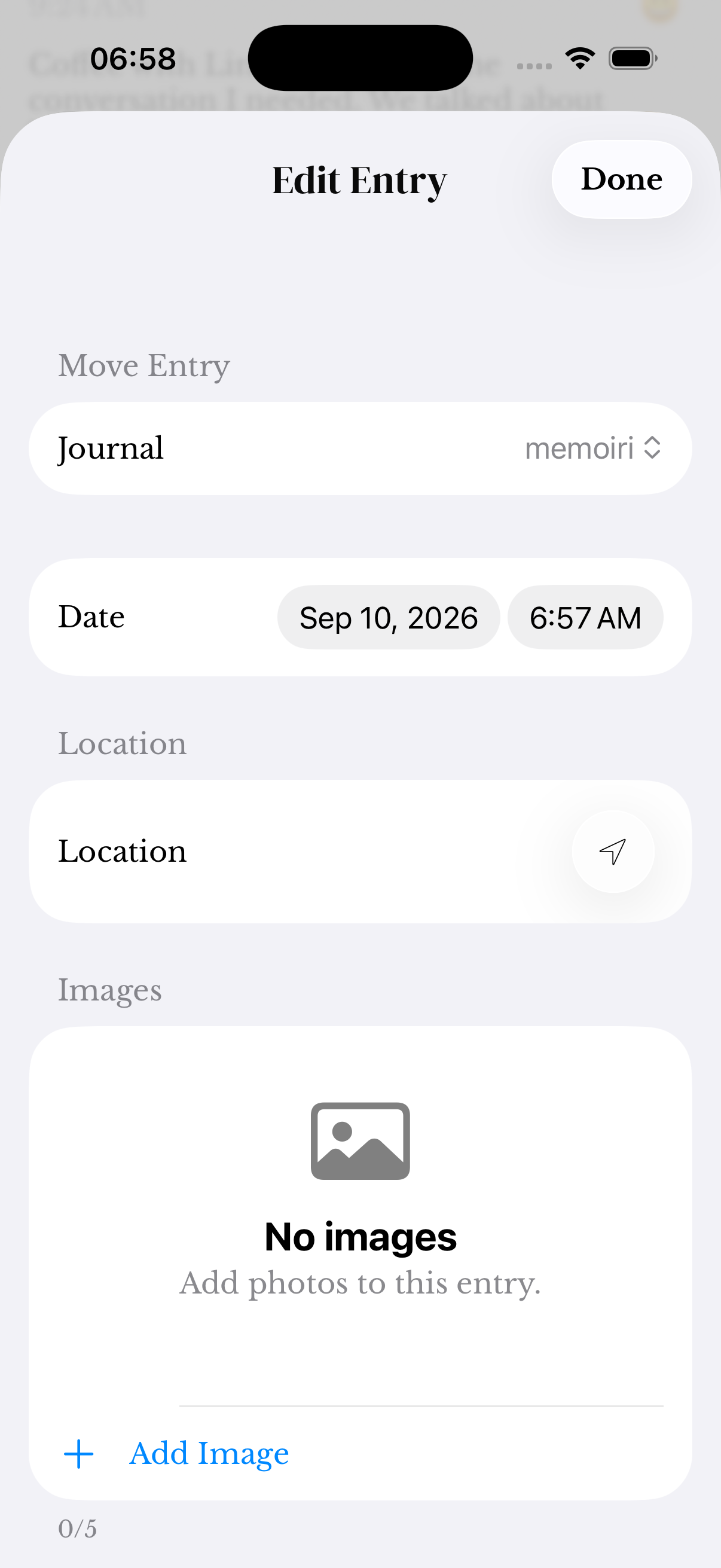
Open Edit Entry from the timestamp or Edit Details menu. The Images section lists the attachments and offers Add Image, with Take Photo and Photo Library actions. The editor accepts up to five photos per entry.
Removing an attachment changes the entry. Keep a backup before removing memories or media you might want later.
Camera, stickers and access
Adding photos or other visual attachments to a saved entry requires memoir+. Camera and photo-library permissions are separate device choices.
For transparent subject cutouts and the sticker editor, see photos and stickers.
Screenshots use sample content. Labels and available controls can vary by app version and device.