

How to get started
- Open Settings → Writing → Focus Time.
- Choose the start time and days, then review Lock Mode and the goal or duration it uses.
- Decide whether to enable More Disciplined before the scheduled session begins.
- For optional app blocking, review Screen Time authorization and the selected apps or categories.
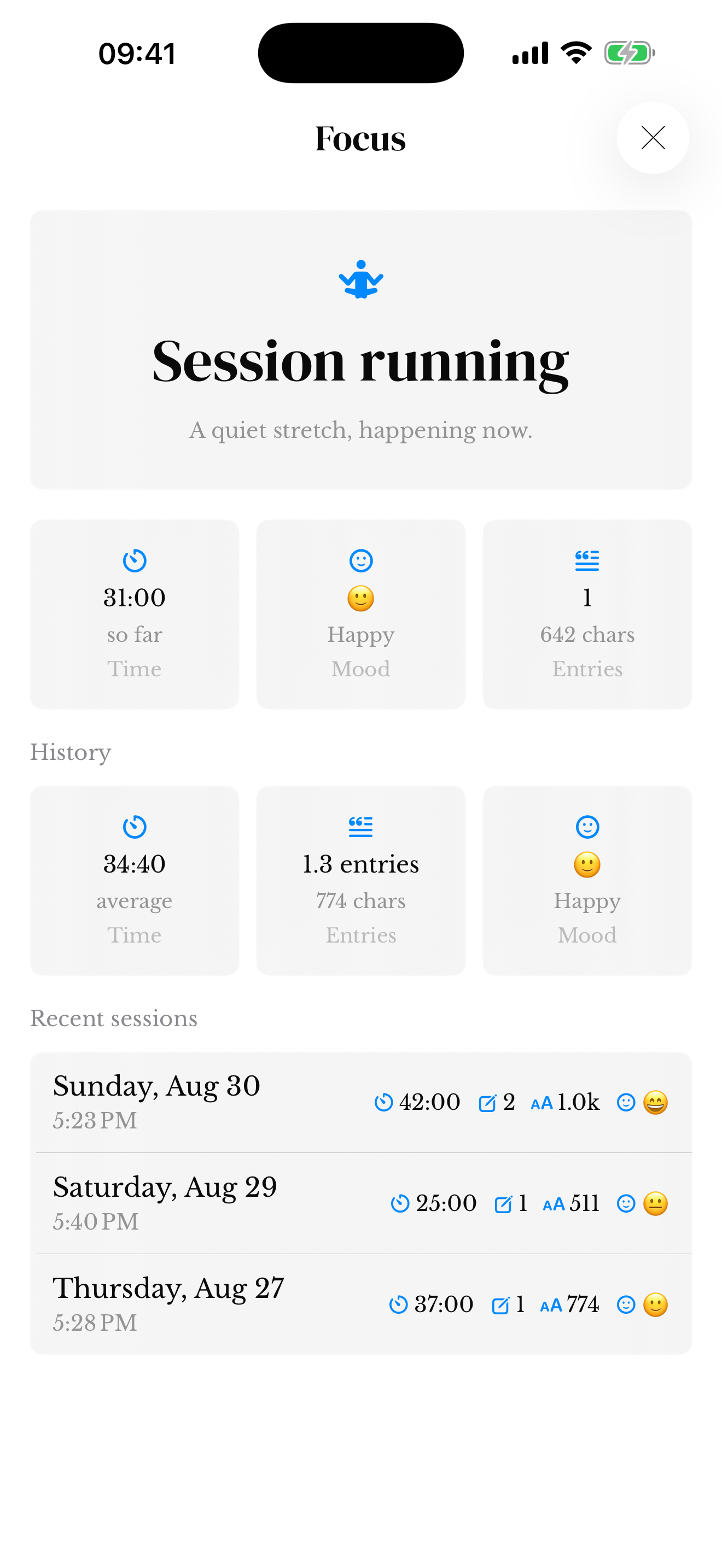
Choose a manageable session
Start with an amount of time that feels realistic. You can use it to write an entry, record a thought, or sit with a prompt. The session should support your writing rather than become another thing to complete perfectly.
Available scheduling and completion options depend on the configuration shown in your version. Read those settings before expecting a session to start or finish automatically.
Optional Screen Time controls
If you choose distraction-blocking features, the app may ask for system Screen Time authorization and selections. Review the apps or categories involved before enabling a schedule.
If something remains blocked unexpectedly, review the active session and its controls. Contact support with the installed app version and what you were doing; do not include private journal text.
Choose a schedule and completion rule
The schedule has a start time and selected weekdays. Lock Mode lets the scheduled session depend on a duration or a daily entry goal. Duration uses 15-minute steps; Entry length shows a character goal.
Choose a goal you understand before enabling the schedule. A manual Focus session and a scheduled lock window are separate controls.
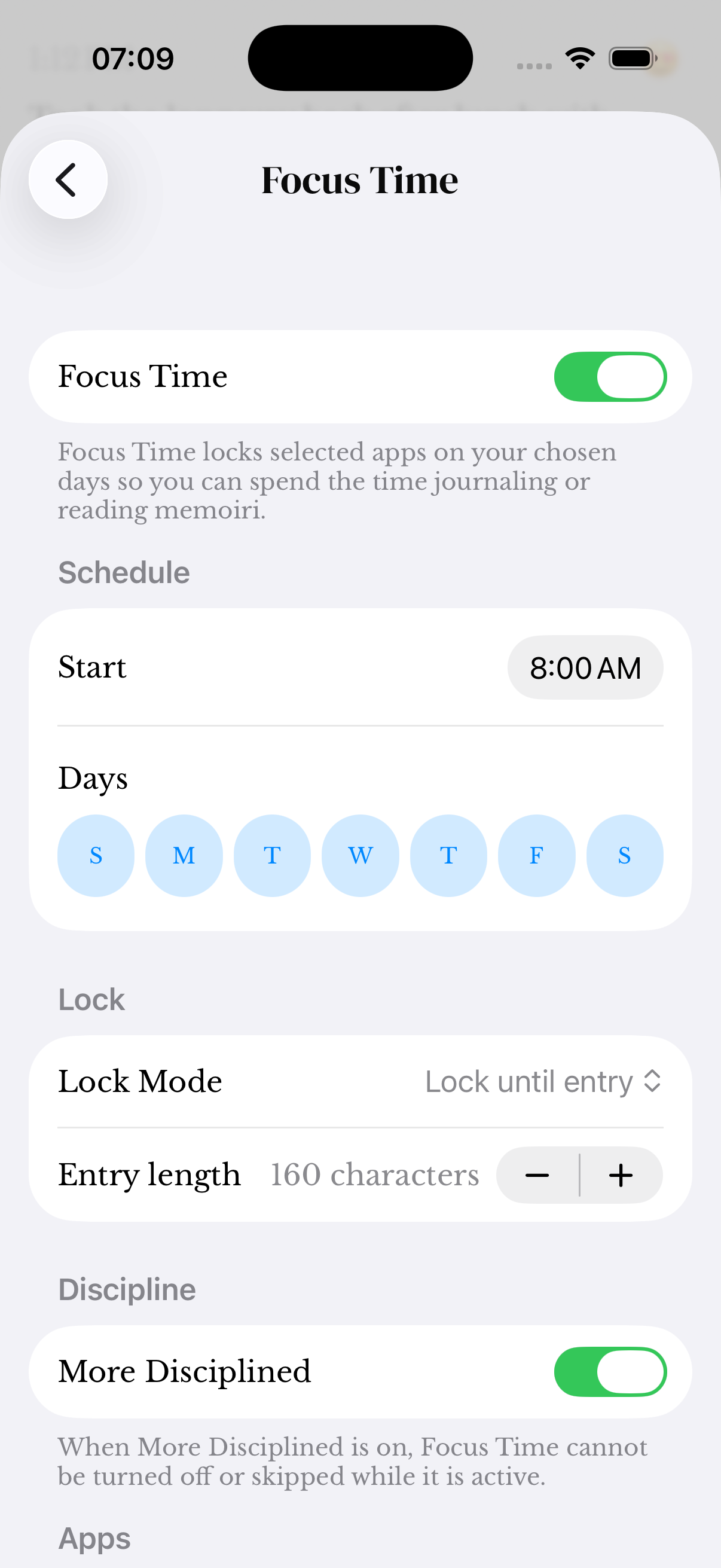
What More Disciplined changes
When More Disciplined is enabled, you cannot turn off or skip an active scheduled Focus Time. Without it, the active schedule can offer Skip Today’s Focus Time.
Screen Time app locking is available on iPhone. On other supported devices, Focus Time works inside memoir without that system app-locking integration.
Session progress and Watch controls
Open the session view to review elapsed time, saved-entry activity and session history where available. Keep your journal entry separate from the session timer: check that the memory itself has been saved.
See Focus Time on Apple Watch for manual start, pause, resume and finish controls and pending command status.
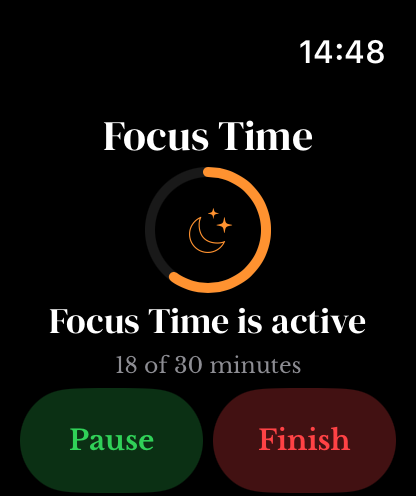
Screenshots use sample content. Labels and available controls can vary by app version and device.