

How to get started
- With Prompt Deck enabled, pull up beyond the newest end of the timeline to reveal the prompt cards.
- Swipe through the questions and choose a starting point. The selected prompt stays with your draft.
- Write your response and send the entry, or close the deck if you would rather write freely.
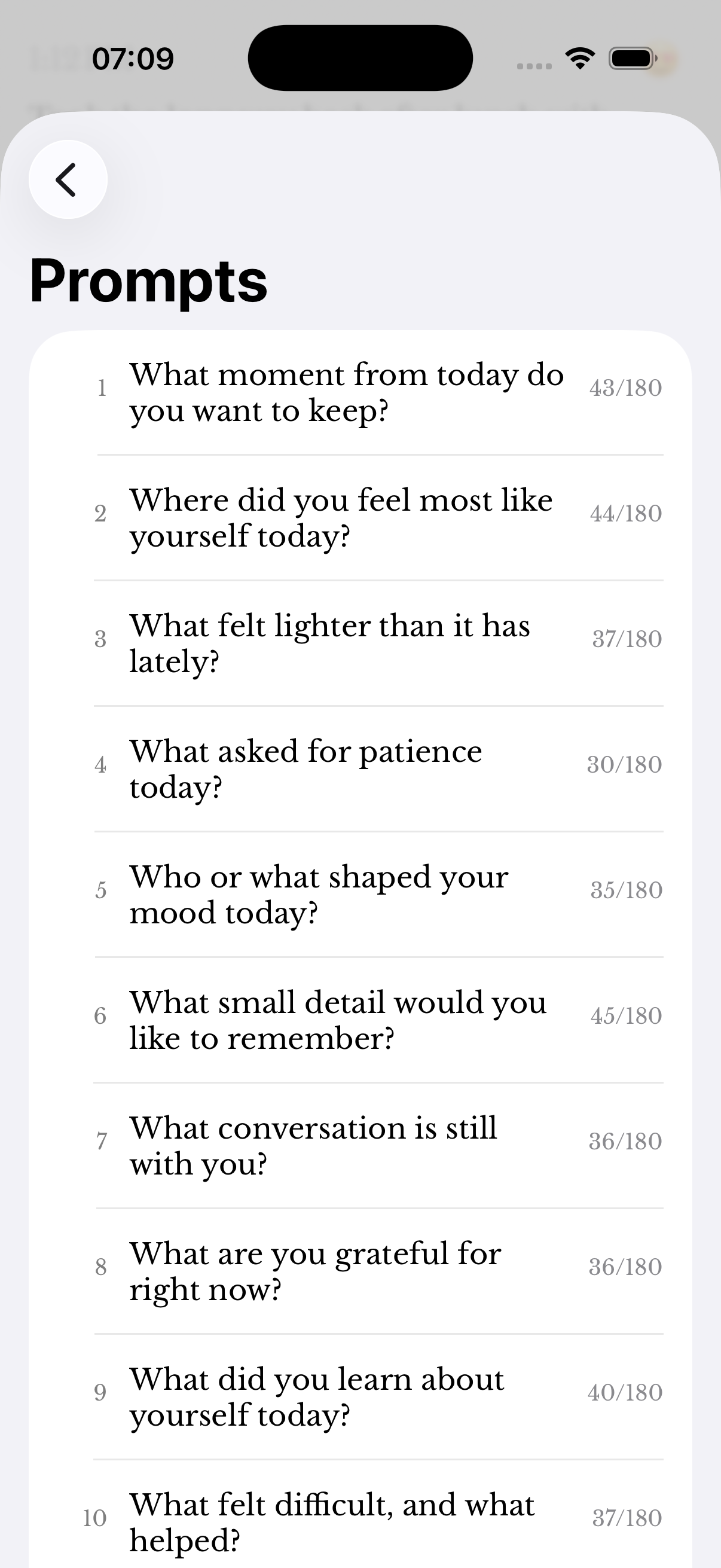
- Go to Settings → Writing → Prompts to edit the questions, or use the deck’s pencil action.
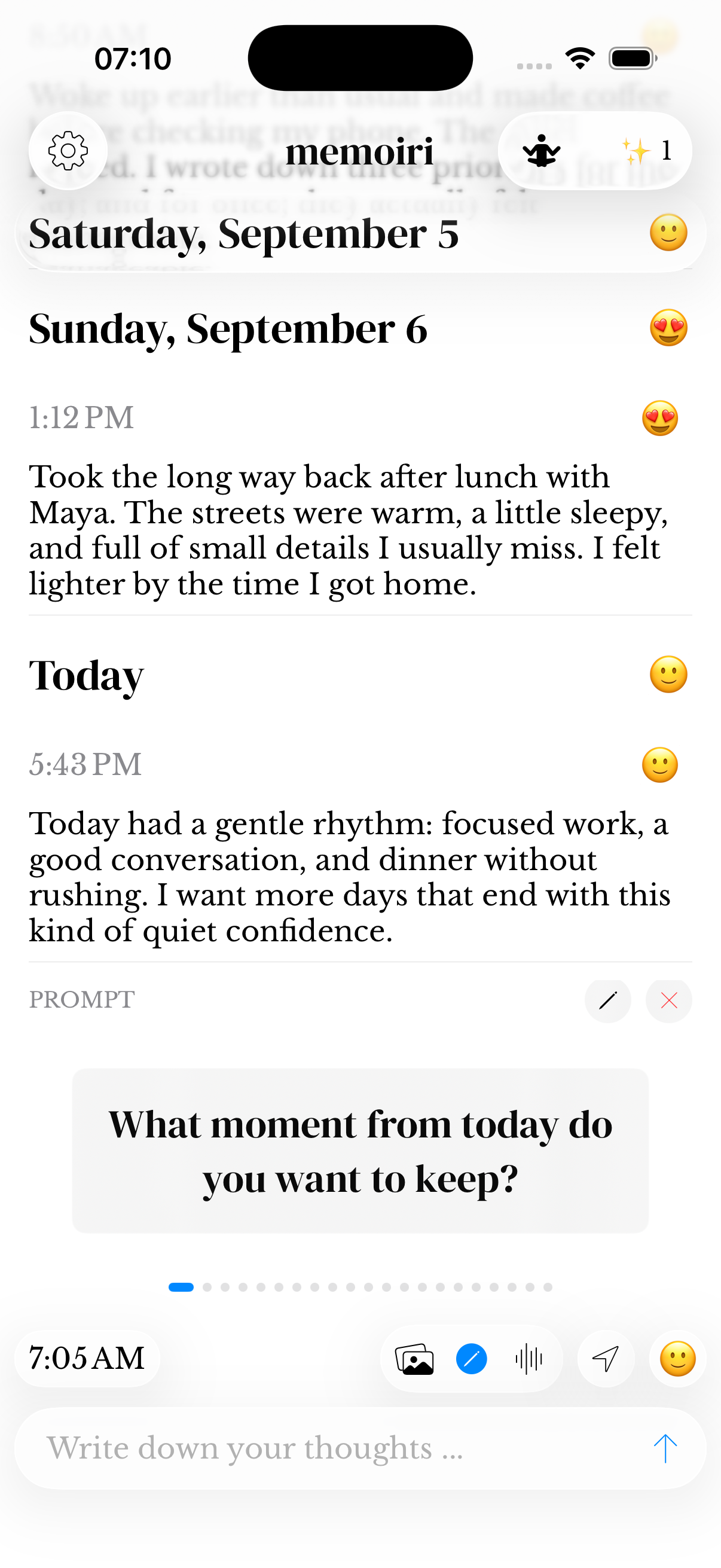
Make the question useful to you
A prompt is not an assignment. You can respond in a few words or use it as the beginning of a longer memory. Skip any topic you do not want to explore.
Prompt customization is part of the memoir+ offering. Check the in-app options for your current access.
Website prompts and reminders
The website finder is free to browse and copy from. It does not send a question into your app automatically or read your private entries.
Prompted notifications are configured separately from browsing prompts. See the reminder guide if you want questions to arrive at chosen times.
Edit your prompt collection
In Prompts, edit a question directly or choose Add Prompt to create one. Swipe a question to delete it. Reset Defaults restores the supplied collection, so use it only when you want to replace your custom set.
Prompt customization requires memoir+. The on-screen character counter shows the length limit for each question.
Show or hide the deck
Settings → Writing → Prompt Deck controls whether the pull-to-reveal deck is enabled. This is separate from scheduled prompt notifications.
A selected prompt gives context to its entry. You can still write about something else or close the deck to continue without a question.
Screenshots use sample content. Labels and available controls can vary by app version and device.