
How to get started
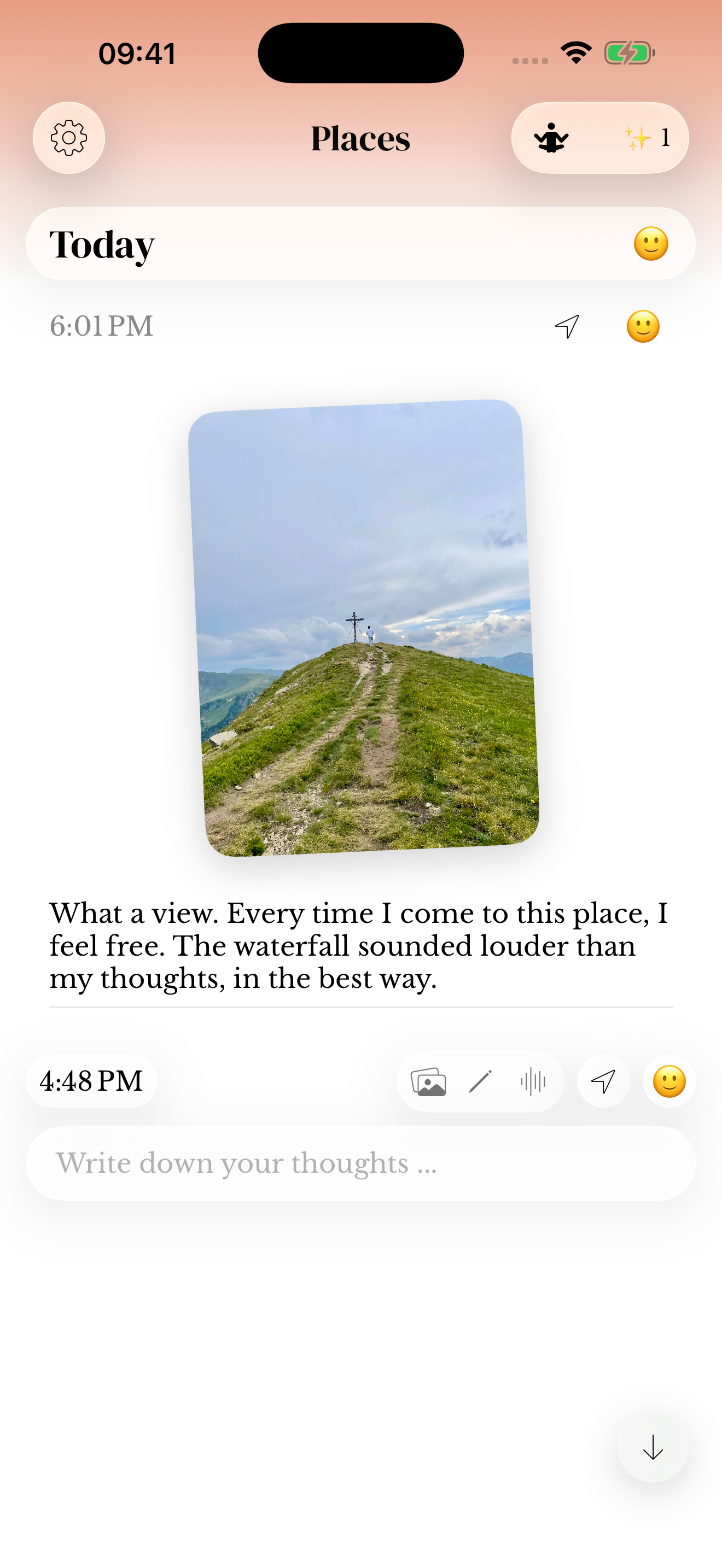
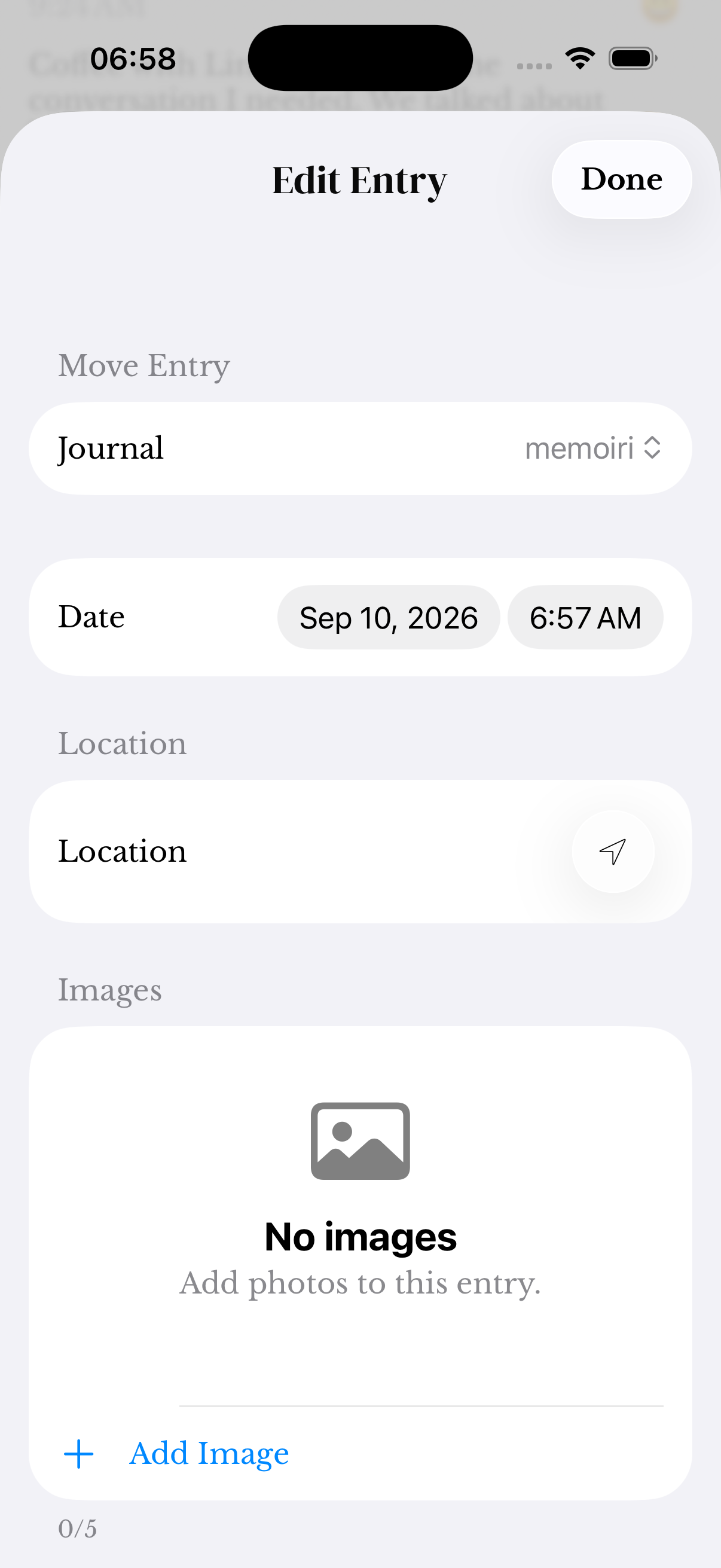
- Review the location controls available when creating or editing an entry.
- Choose the place information you want associated with that memory.
- Use place-related Search options to return to entries with matching saved information.
Permission and missing places
Device location permission affects features that request your current position. You can review or change that permission in system settings.
An entry may not have saved coordinates or a place label. Writing a place name in prose is also different from attaching location metadata.
Before sharing a memory
Check whether the content you are sharing includes a place you consider private. A photo, written address, or saved location can reveal context you did not intend to include.
You can still keep a meaningful journal without attaching a precise location to every day.
Screenshots use sample content. Labels and available controls can vary by app version and device.