

How to get started
- Start a voice entry and allow microphone access when asked.
- If you want speech recognition, review the separate Speech Recognition permission request.
- Finish recording and review any recognized text before saving.
- Replay the audio when you need to check a word, name or phrase.
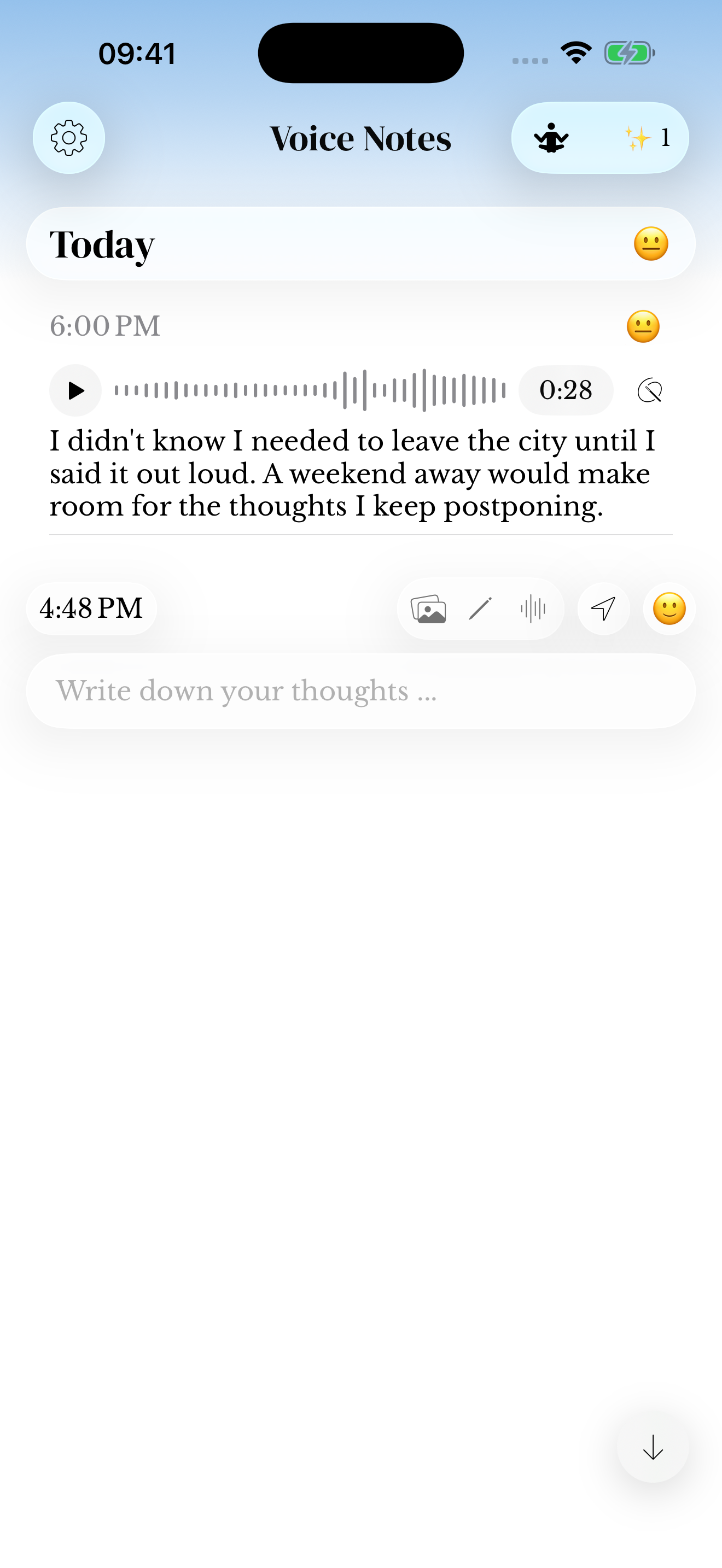
Check the words before relying on them
Recognition can miss names, accents, quiet words or overlapping voices. Read the result and correct saved entry text as needed using the writing and editing guide.
A missing or incomplete transcript does not by itself mean the recording has been lost. Try the entry’s play control and keep the audio while troubleshooting.
Permissions and availability
Microphone access and Speech Recognition are separate permissions. Review them in the device’s settings if recording works but recognition does not. Availability depends on the speech service, language and device conditions; do not assume every language or offline situation will work.
Keep a recording intact if an interruption stops transcription. See the privacy policy for the app’s explanation of permissions and data handling.
Recordings made on Apple Watch
Transferred Watch recordings can be transcribed on iPhone when Speech Recognition permission is already authorized. Let the audio transfer finish before expecting a transcript.
If the recording itself has not arrived, follow Watch transfer troubleshooting.
Screenshots use sample content. Labels and available controls can vary by app version and device.